

If you've ever tried managing a Google Ads account with more than a handful of campaigns directly in the browser, you already know the frustration — slow load times, clunky bulk edits, and the ever-present risk of pushing a half-finished change live before you meant to.
Google Ads Editor fixes most of that. It's a free desktop application built by Google, and it's one of the most underutilised tools in digital advertising — whether you're a business owner managing your own spend, or building a career running campaigns on behalf of clients.
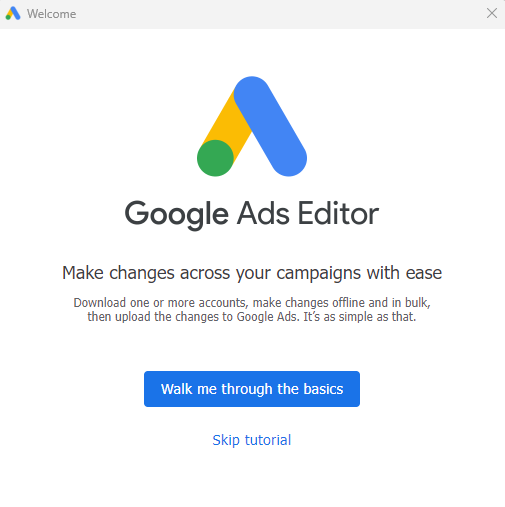
This guide covers what it is, why it matters, and how to get it installed and running. The screenshots in the slideshow above walk you through every step of the download and installation process.
What Is Google Ads Editor?
Google Ads Editor is a standalone desktop app for Windows and Mac that lets you download a full copy of your Google Ads account, make changes offline, and then review and publish those changes when you're ready.
Think of it as the difference between editing a live document in front of everyone and drafting your changes in private before hitting publish. That distinction matters more than most people realise — especially when real ad spend is at stake.
It's free, it's maintained by Google, and it's been around long enough to be genuinely mature and reliable software.
Who Should Be Using Google Ads Editor?
If you're a business owner managing your own campaigns, Editor becomes valuable as soon as your account grows beyond a basic structure — multiple campaigns, several ad groups, a reasonable keyword list. At that point, the browser interface starts costing you time.
If you're looking to manage Google Ads professionally — whether freelance, at an agency, or building your own client base — Editor isn't optional. It's a baseline competency. Understanding it signals to clients and employers that you work at a professional level, not just clicking around in the interface when something needs changing.
Why Google Ads Editor Is Worth Learning
1. Offline Editing With a Review Step Before Anything Goes Live
This is the feature that earns the most respect from experienced practitioners. In the standard web interface, most changes apply immediately. Editor works differently — you download your account data, make all your changes locally, and nothing is published until you deliberately click Post.
That review step is genuinely valuable. You can see a clean summary of every change you're about to make, catch mistakes, and reverse anything before it touches a live campaign. For anyone managing significant daily spend, this alone justifies using it.
2. Bulk Editing at Real Scale
The web interface has bulk editing capabilities, but they're limited. Editor handles mass changes with ease — updating bids across hundreds of keywords simultaneously, swapping out ad copy across every ad group in a campaign, appending new tracking parameters to all destination URLs, or changing match types at scale.
Tasks that would take an hour in the browser take minutes in Editor. That efficiency compounds fast if you're managing multiple accounts or campaigns with real keyword depth.
3. Account-Wide Find and Replace
Editor's find-and-replace function works across your entire account simultaneously — campaigns, ad groups, ads, keywords, and extensions. You can replace a phone number in every ad at once, update seasonal messaging across all active campaigns, or fix a brand name that's been spelled inconsistently throughout the account.
This is one of the clearest gaps between Editor and the web UI. The browser's bulk tools are segmented by level. Editor treats the account as one editable document.
4. Campaign Duplication and Structure Cloning
Building new campaigns from scratch is time-consuming. Editor lets you duplicate a complete campaign — including all its ad groups, keywords, ads, and settings — and then adapt it. If you're expanding into a new service area, launching a seasonal campaign, or replicating a structure that's performing well into a new geography, duplication saves significant setup time.
For agencies and freelancers building similar campaign structures across multiple clients, this is a major workflow accelerant.
5. Copying Campaigns Across Accounts
This is a capability the web interface doesn't have at all. In Editor, you can open multiple accounts simultaneously and copy campaigns directly between them. If you've built a high-performing campaign structure for one client and want to replicate it for another in the same industry, it's a straightforward copy-paste.
For anyone managing more than one account, this is a significant time saver.
6. CSV Import for Large-Scale Builds
Editor supports importing campaign data from CSV files. If you've built out a large keyword list in Excel or Google Sheets, or you have a product catalogue you need to turn into an ad structure, you can format it to spec and import it directly rather than entering everything by hand.
This is particularly useful when setting up e-commerce campaigns, location-based campaigns across many suburbs or regions, or any scenario where the data already exists in spreadsheet form.
7. Error Checking Before You Post
Before publishing changes, Editor runs a check across everything you've modified and flags issues — disapproved ads, broken URLs, missing required fields, policy violations. It gives you a chance to fix problems before they affect delivery.
In the web interface, you often only discover these issues after the fact, when you notice an ad isn't serving or you get a policy notification.
How to Download and Install Google Ads Editor
The process is straightforward. Follow along with the screenshot slideshow above for a visual walkthrough of each step.
Step 1 — Go to the official download page Search "Google Ads Editor download" or navigate directly to ads.google.com/home/tools/ads-editor. Always download from the official Google source.
Step 2 — Select your operating system Editor is available for both Windows and Mac. Choose the version that matches your system.
Step 3 — Run the installer Open the downloaded file and follow the installation prompts. It installs like any standard desktop application — no complex setup required.
Step 4 — Sign in with your Google account On first launch, you'll be prompted to sign in with the Google account that has access to your Ads account.
Step 5 — Download your account Once signed in, select the account you want to work with and click Download. Editor will pull a local copy of your campaign data. Depending on the size of your account, this takes anywhere from a few seconds to a couple of minutes.
You're now ready to start editing.
A Note on Keeping Editor Updated
Google updates Editor regularly to stay aligned with new features in the main platform. It's worth checking for updates periodically — especially before major campaign builds — to make sure you have access to the latest ad formats and settings. The app will usually prompt you when an update is available.
The Bottom Line
Google Ads Editor isn't flashy, and it doesn't get talked about as much as the latest AI bidding features or campaign types. But it's one of those tools where competency compounds — the more fluent you become with it, the faster and more accurate your campaign management gets.
For business owners, it reduces the time cost of managing your own campaigns meaningfully. For anyone building a career or agency around paid search, it's a professional baseline you want to have covered early.
At Finmark Solutions, we cover the tools, platforms, and strategies that make digital marketing and business operations more efficient. If you found this guide useful, explore the rest of the blog for more practical breakdowns across advertising, software, and growth strategy.